Game Day Guide
From setup to post-game stats — everything you need to run a professional game day with ClipboardIQ.
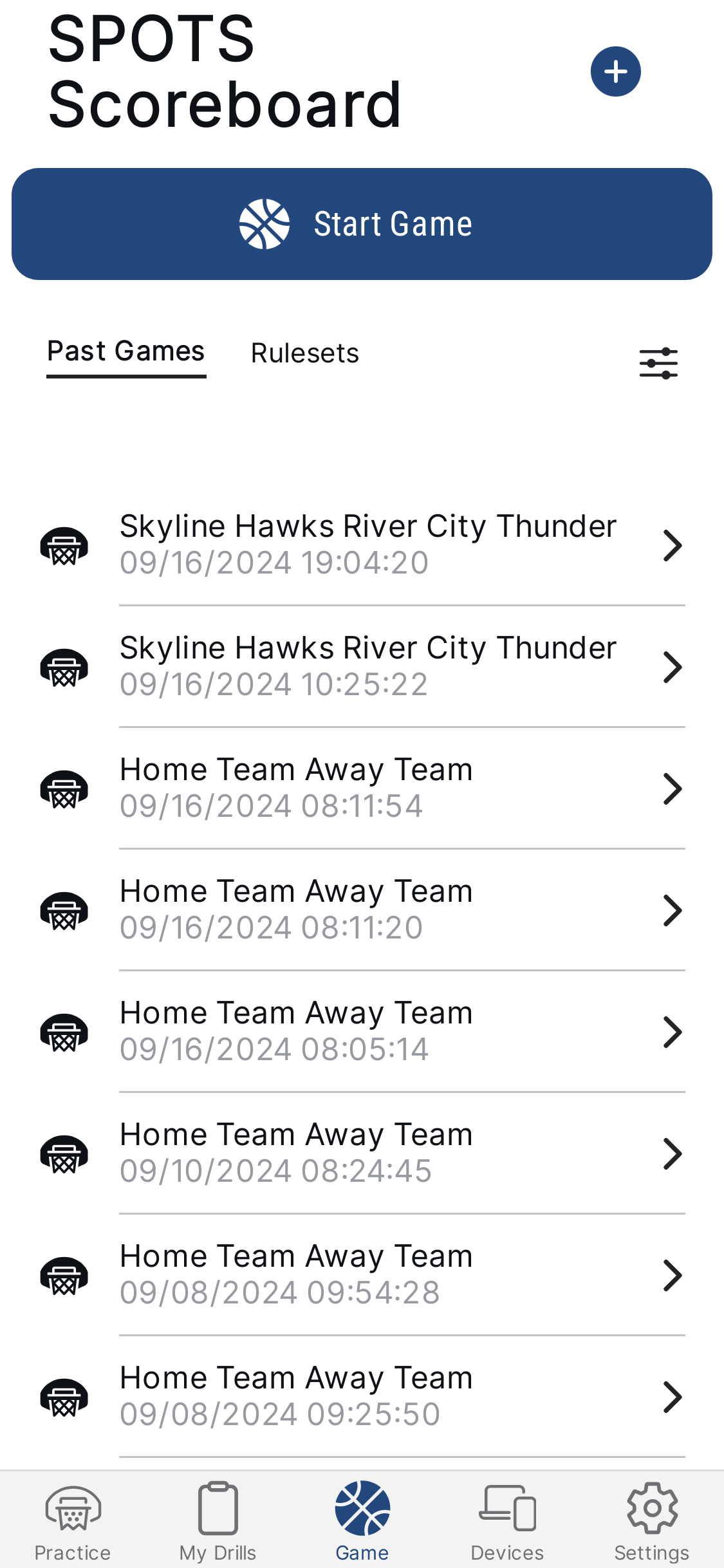
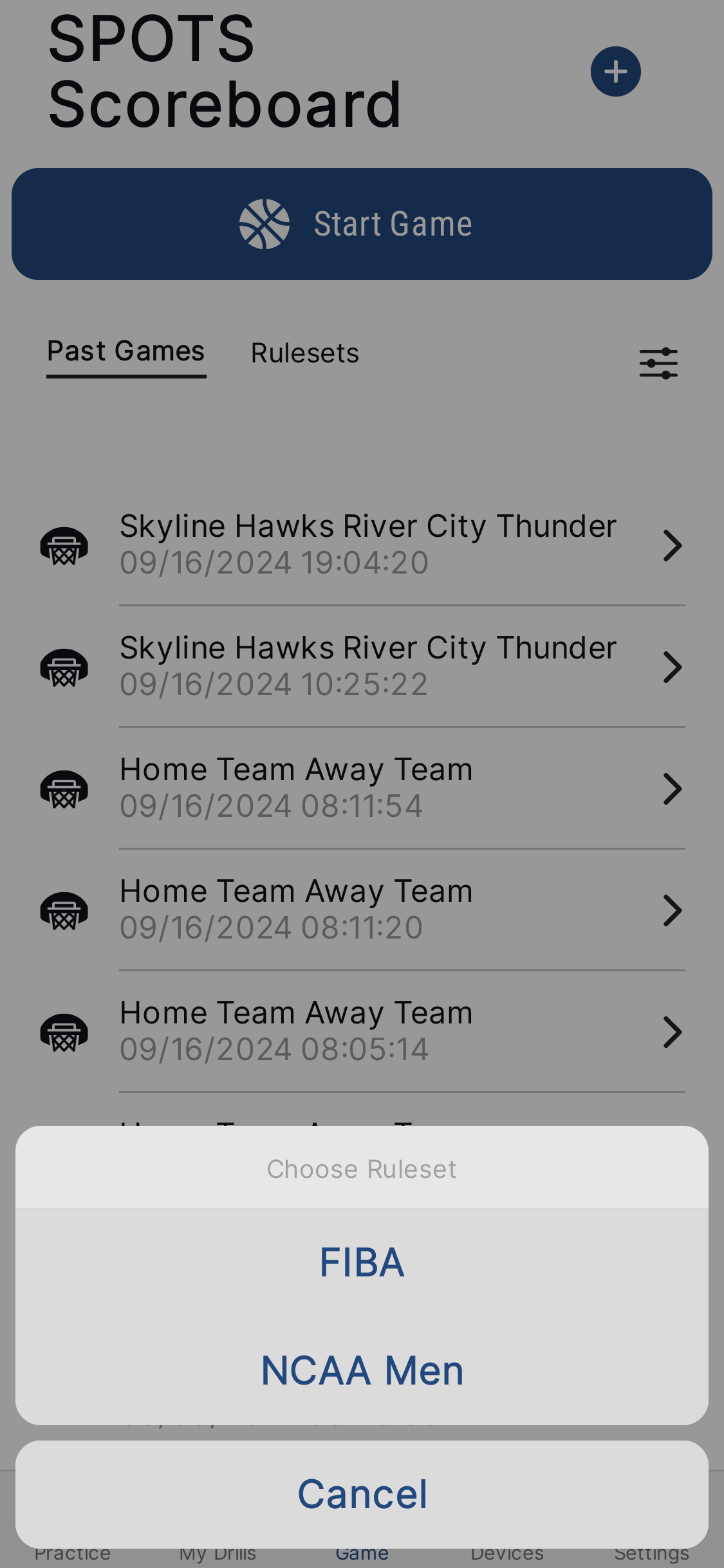
1. Starting a Game
2. Game Preparation
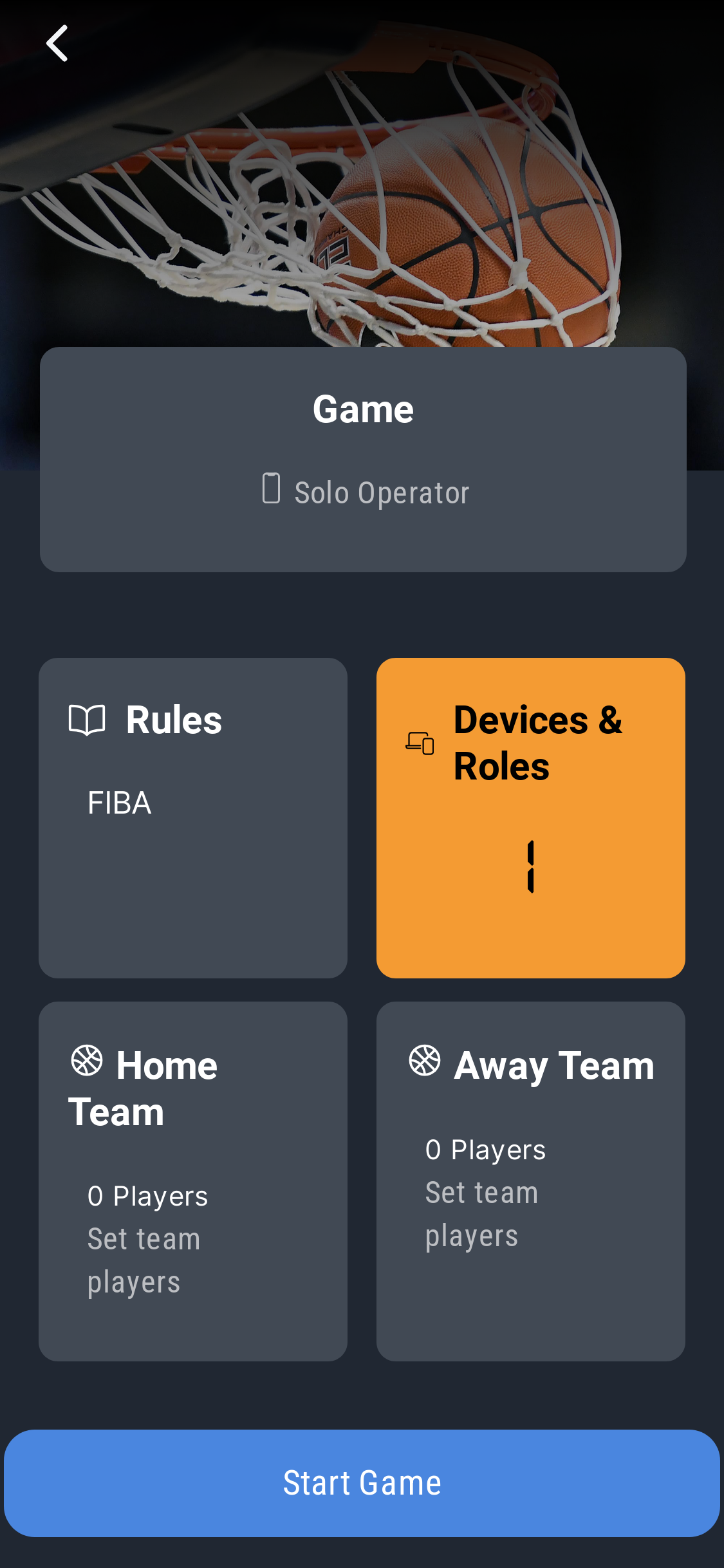
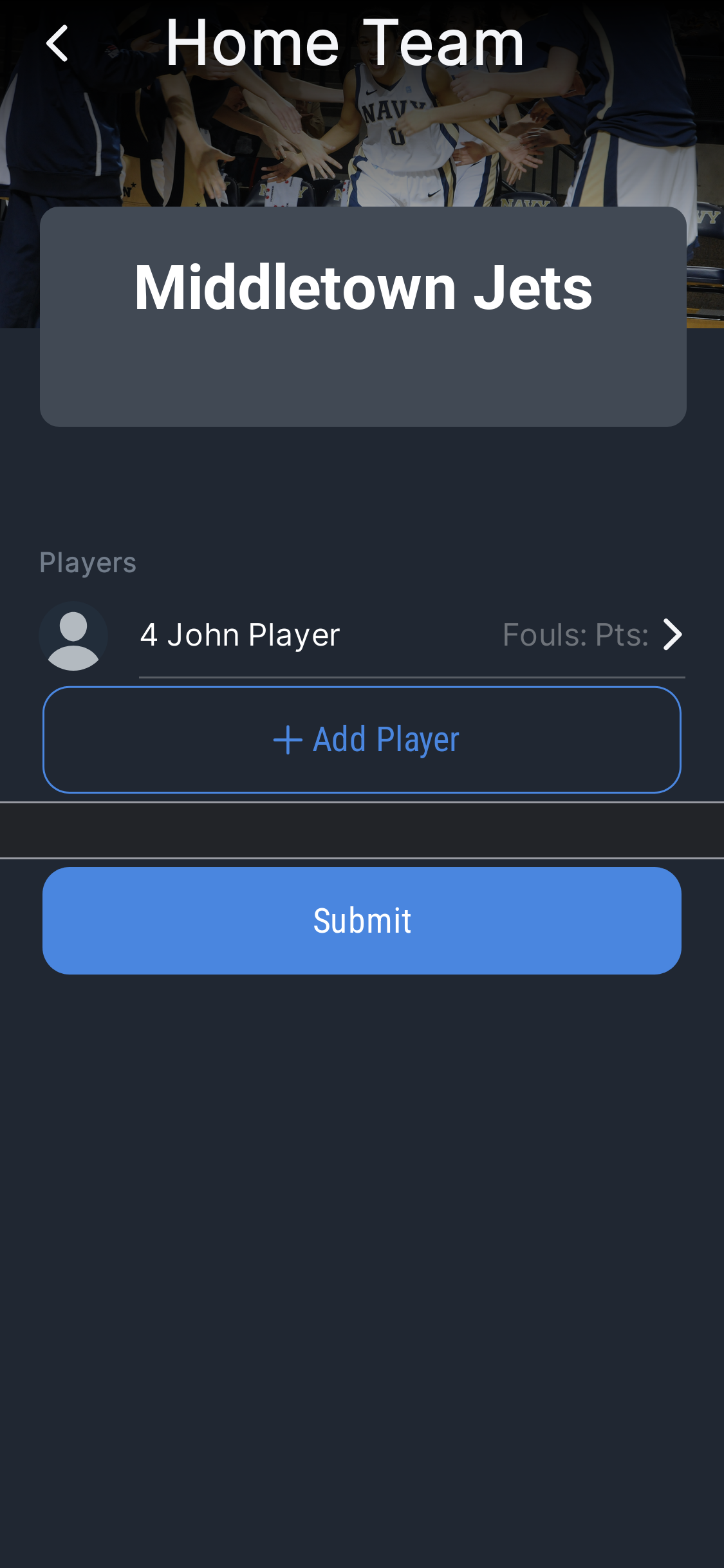
The Prepare Game screen is where you set up everything before tip-off:
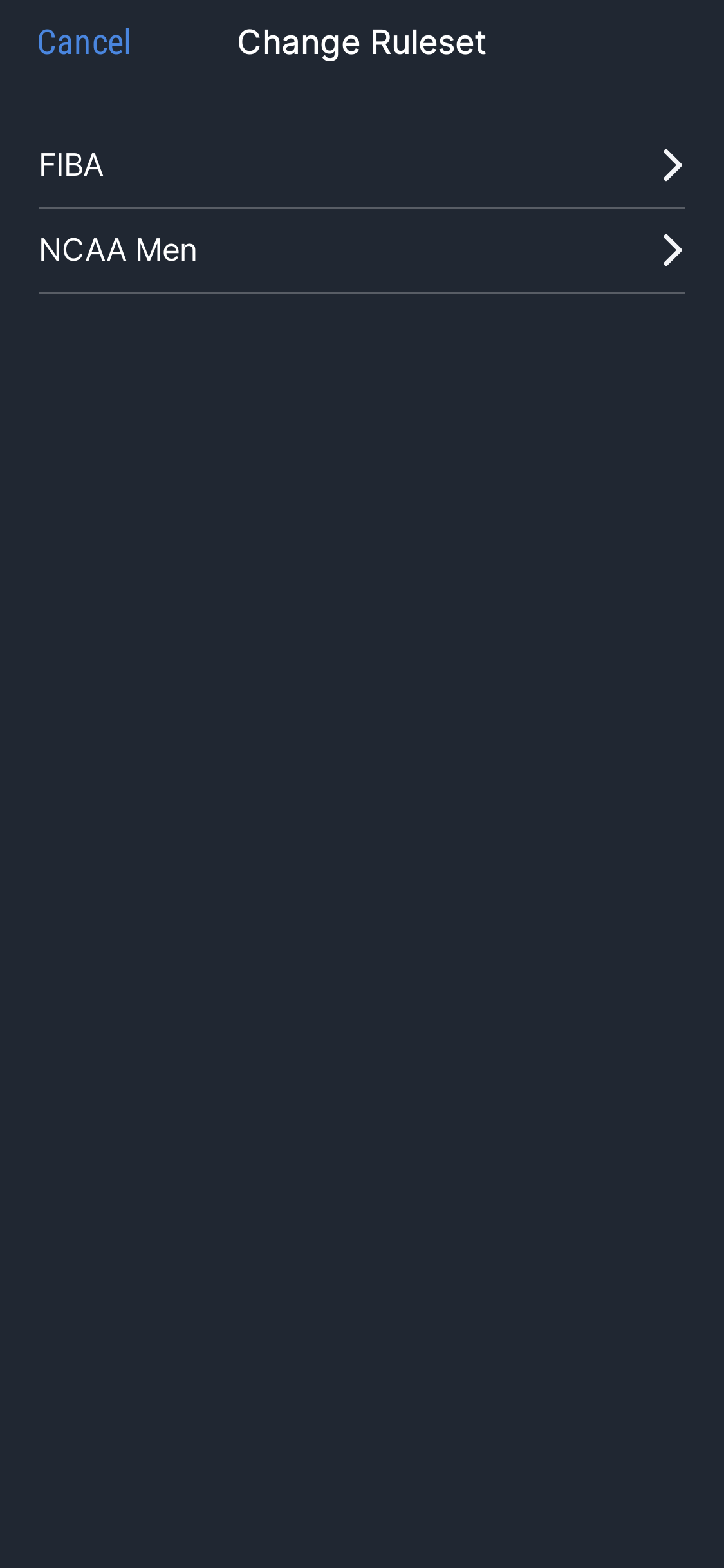
- Edit the selected ruleset if needed
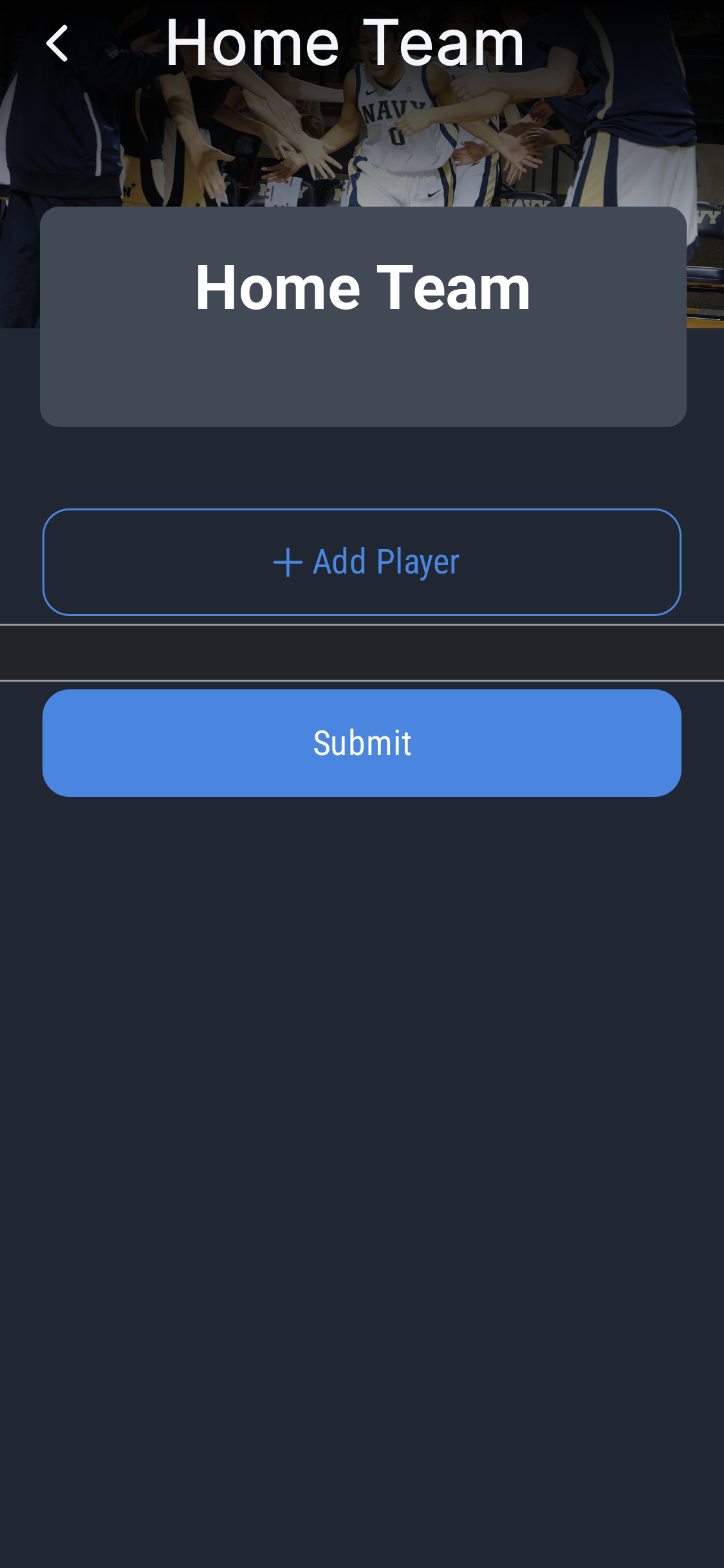
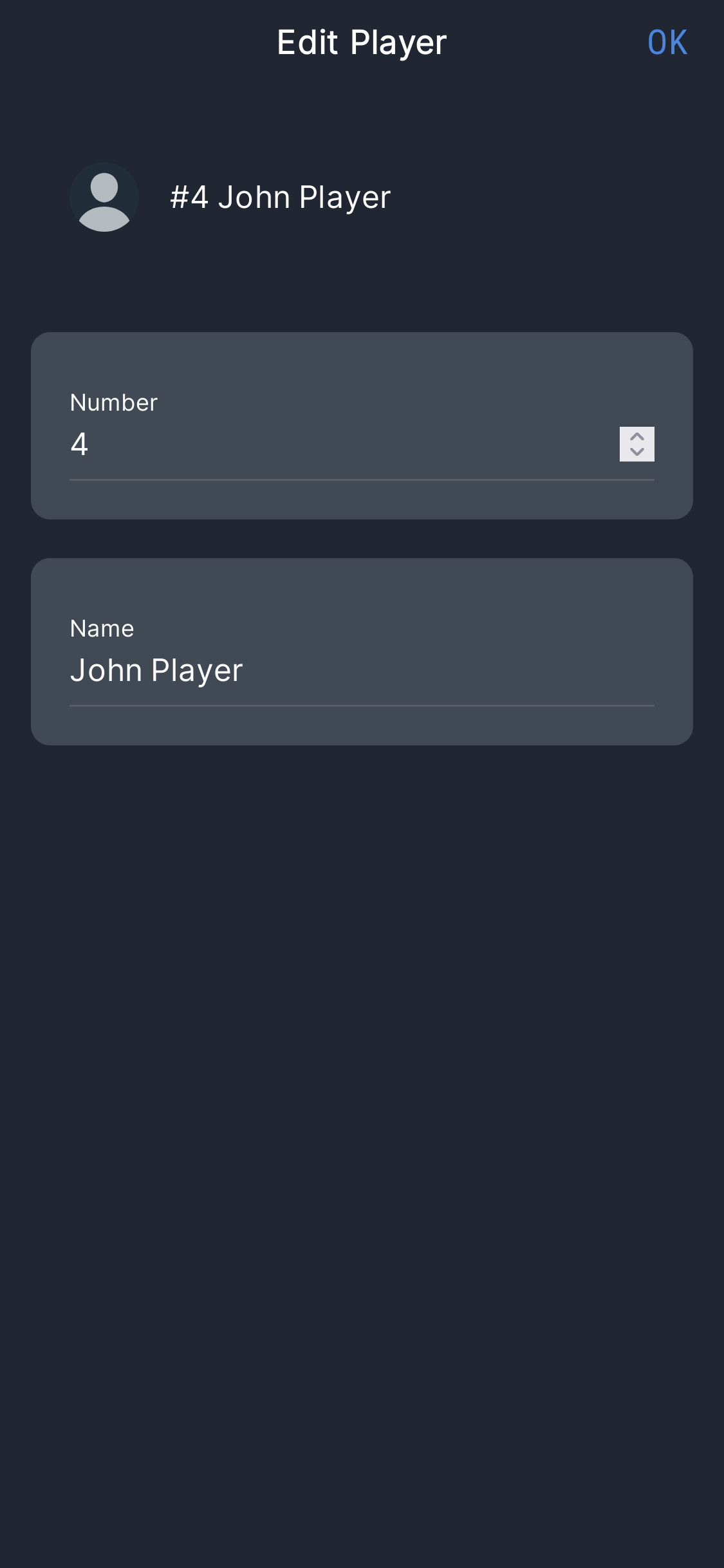
- Enter team names and assign player numbers and names
- Set the number of operators (table officials) — this determines device roles
If player details are missing, the system will alert you before starting — but you can proceed anyway for informal games.
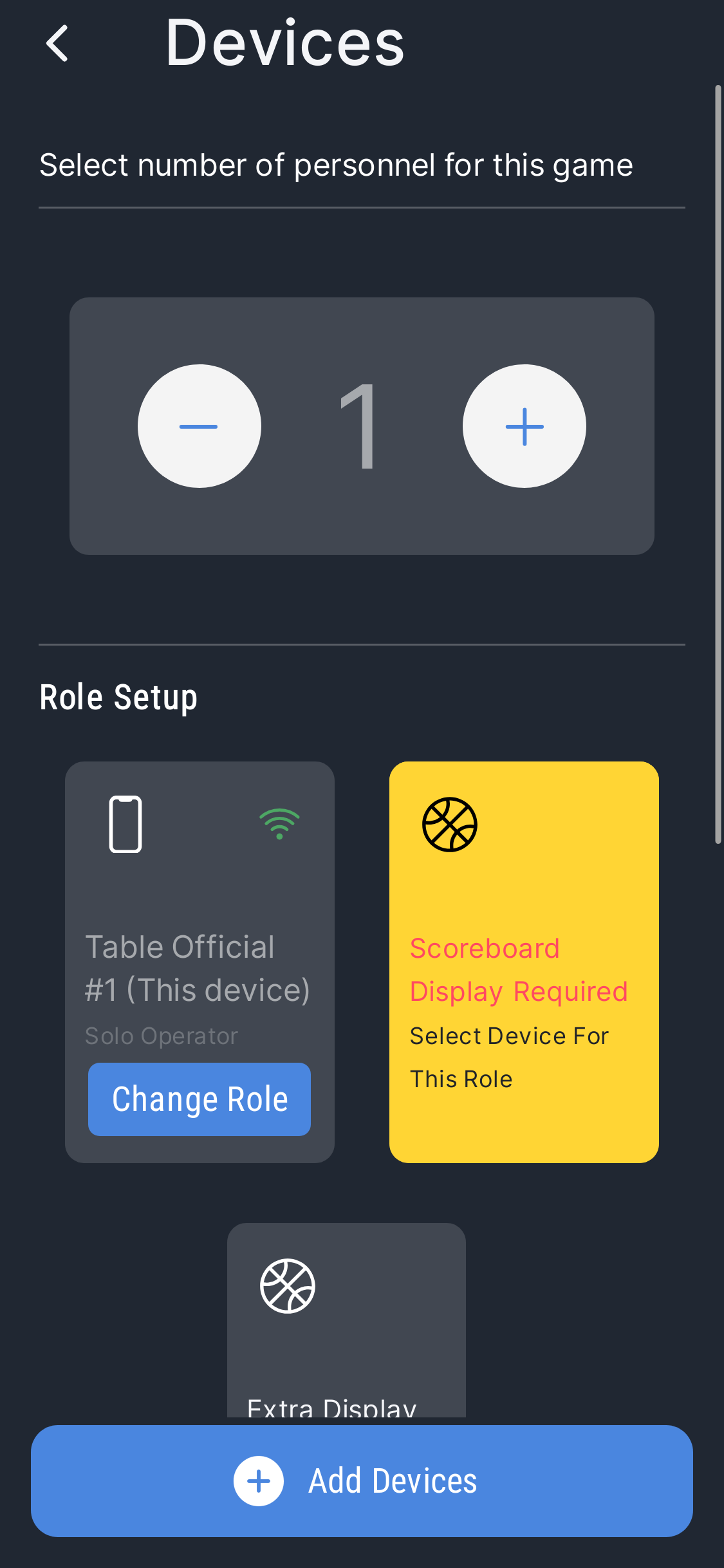
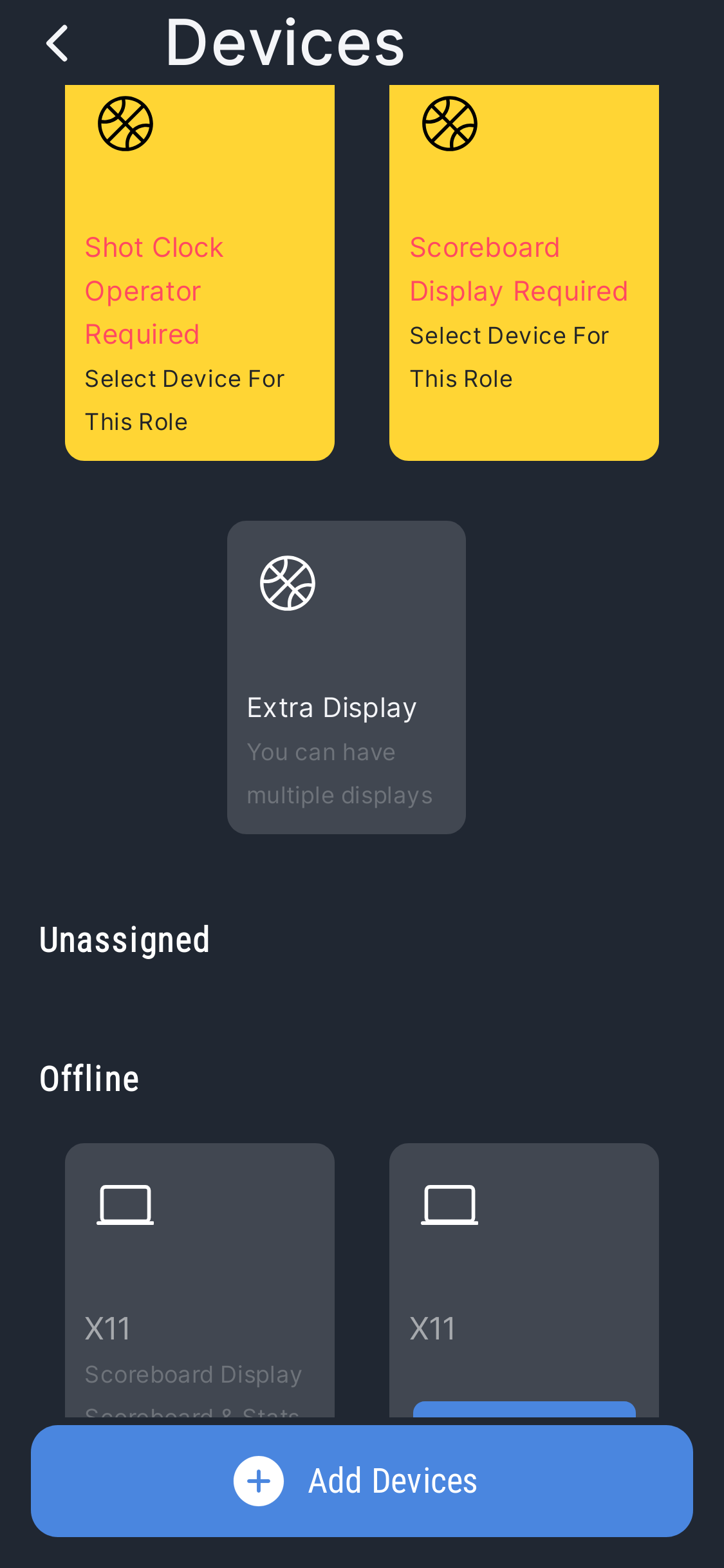
3. Assigning Operator Roles
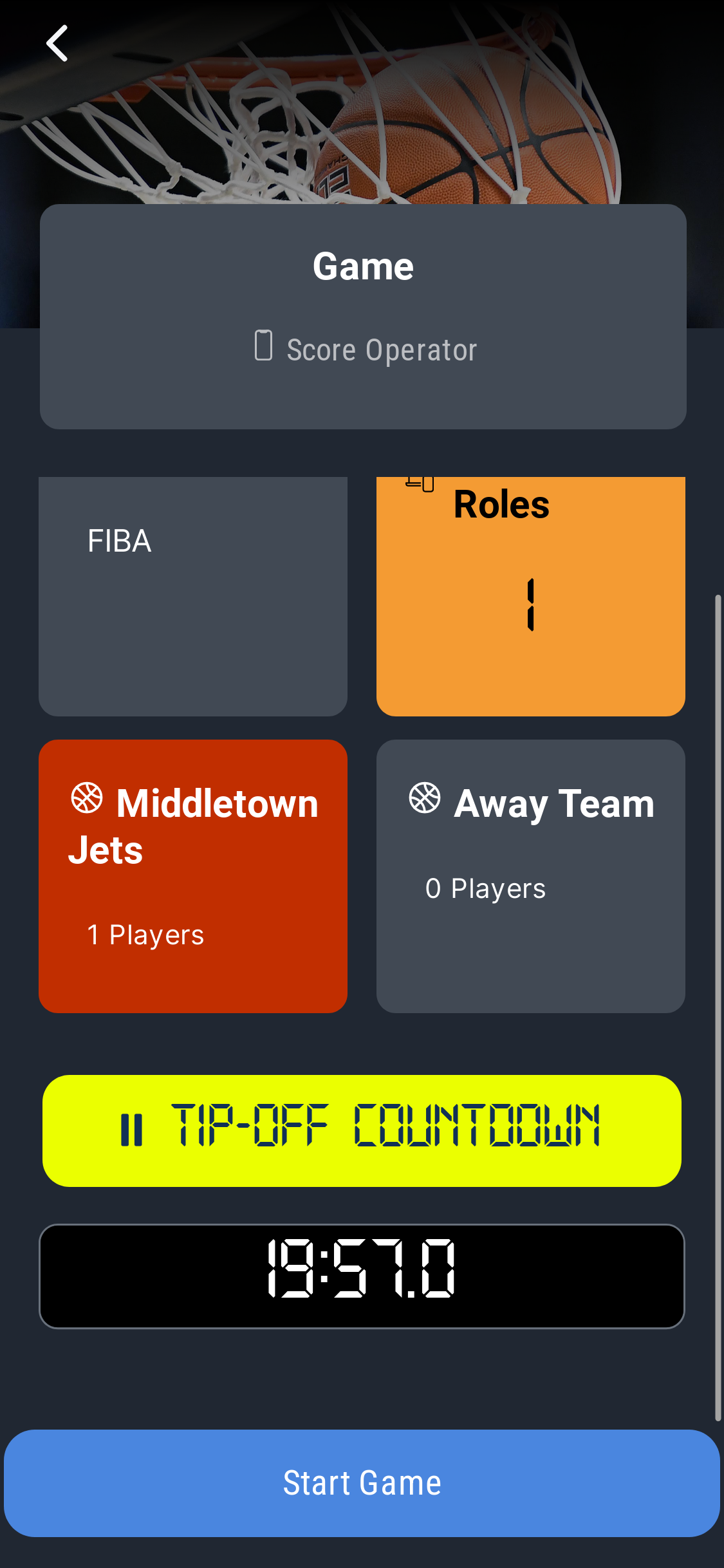
Depending on how many people are helping at the table, assign roles to each connected device:
4. Tip-Off
Once you enter the Prepare Game screen, the Tip-Off Timer starts counting down on both the operator's device and the scoreboard display.
- Teams can warm up while the timer counts down
- Continue setting up (team names, player names, roles) while the timer runs
- The game starts when the timer reaches zero or you manually press the tip-off button
If essential info is missing (player names, device roles), you'll get alerts — but you can ignore them for informal games.
5. Solo Operator Mode
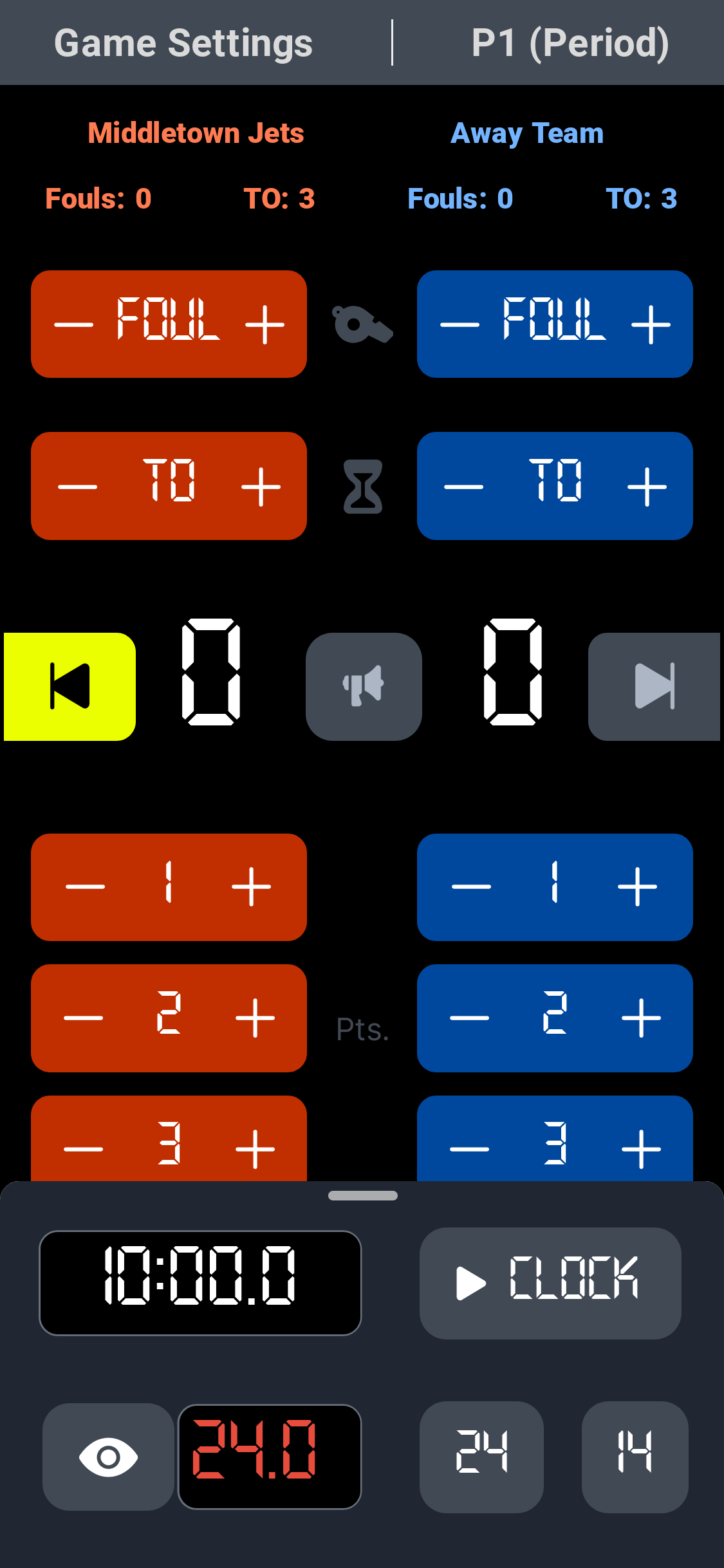
One person manages the entire game from a single device:
Scoring
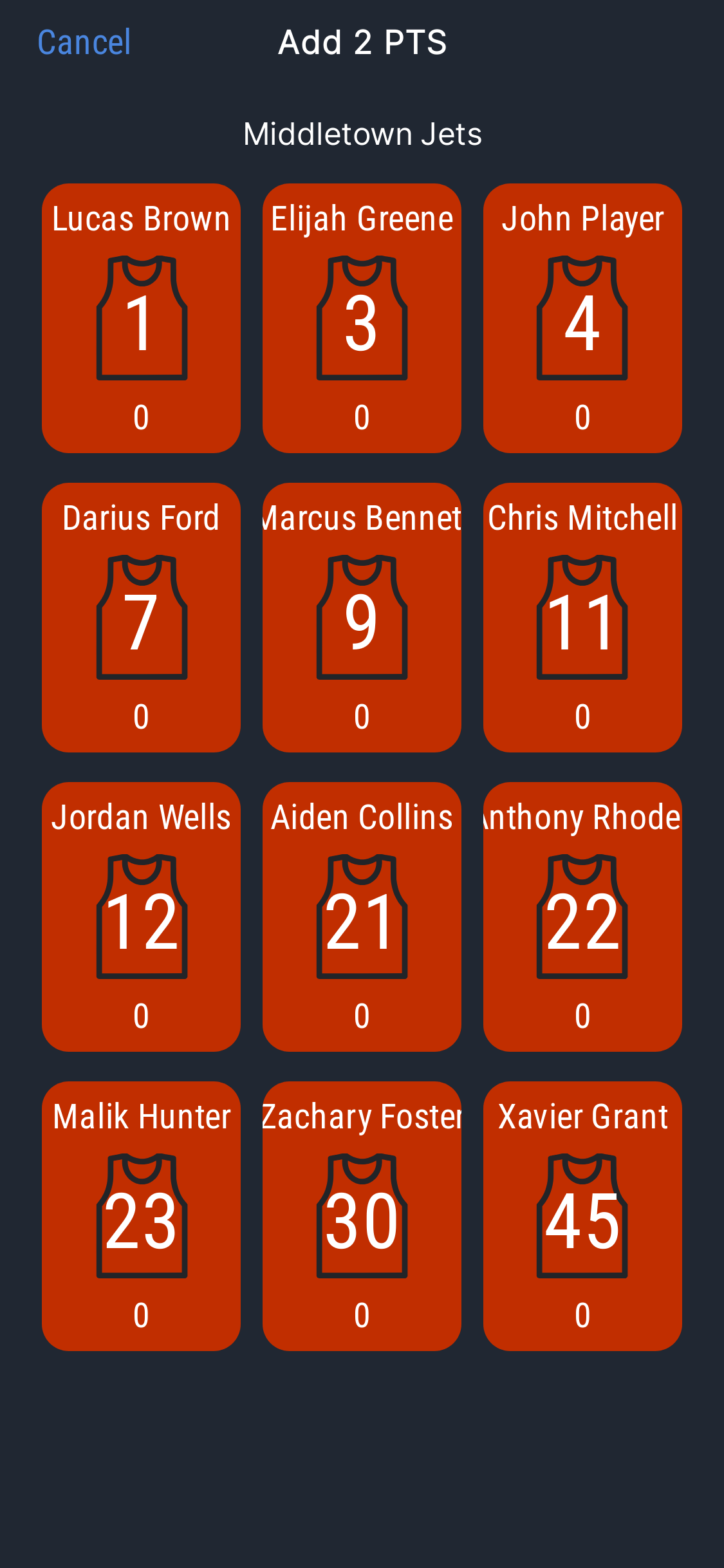
Tap +1, +2, or +3. Assign points to players if roster is entered.
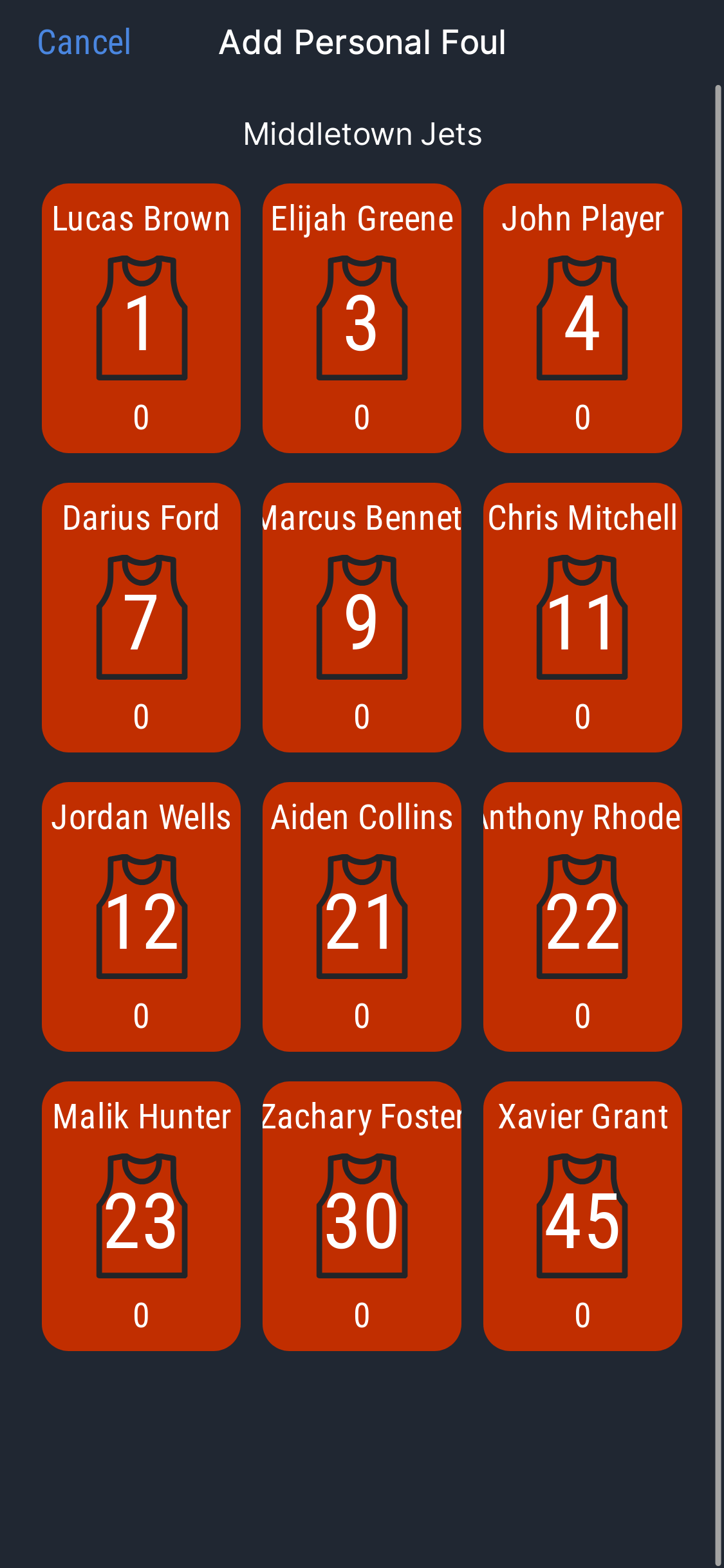
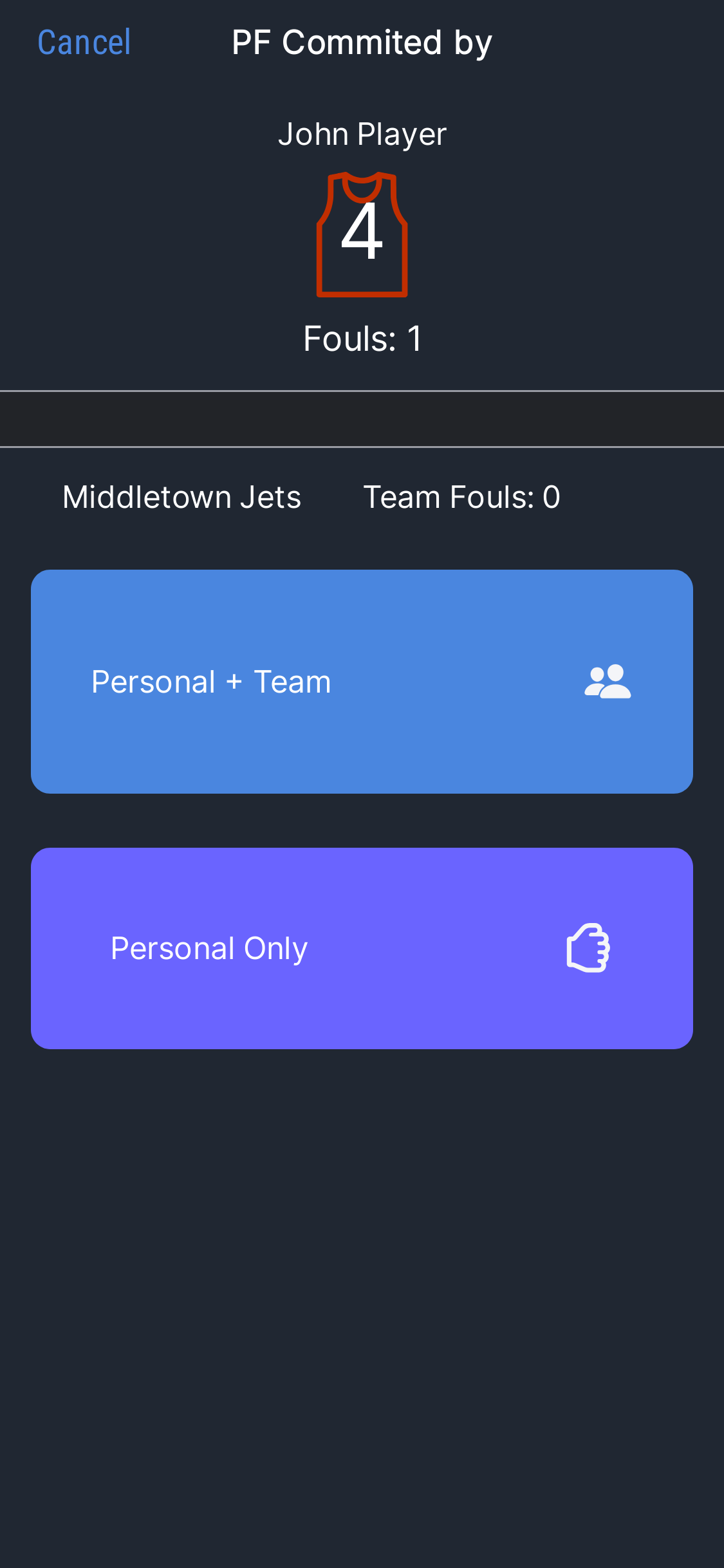
Fouls
Assign personal fouls with team foul tracking.
Clocks
Game clock and shot clock start simultaneously for simplicity.
Possession
Timeouts, possession arrow, and period management.
6. Multiple Operators
For more formal games, split responsibilities across multiple devices:
Manages score updates and player stats only. Focused view without clock distractions.
Dedicated to starting and stopping the game clock. Single responsibility for accuracy.
Controls the shot clock independently. Can hide it during end-of-period situations.
7. Timeouts & Period Management
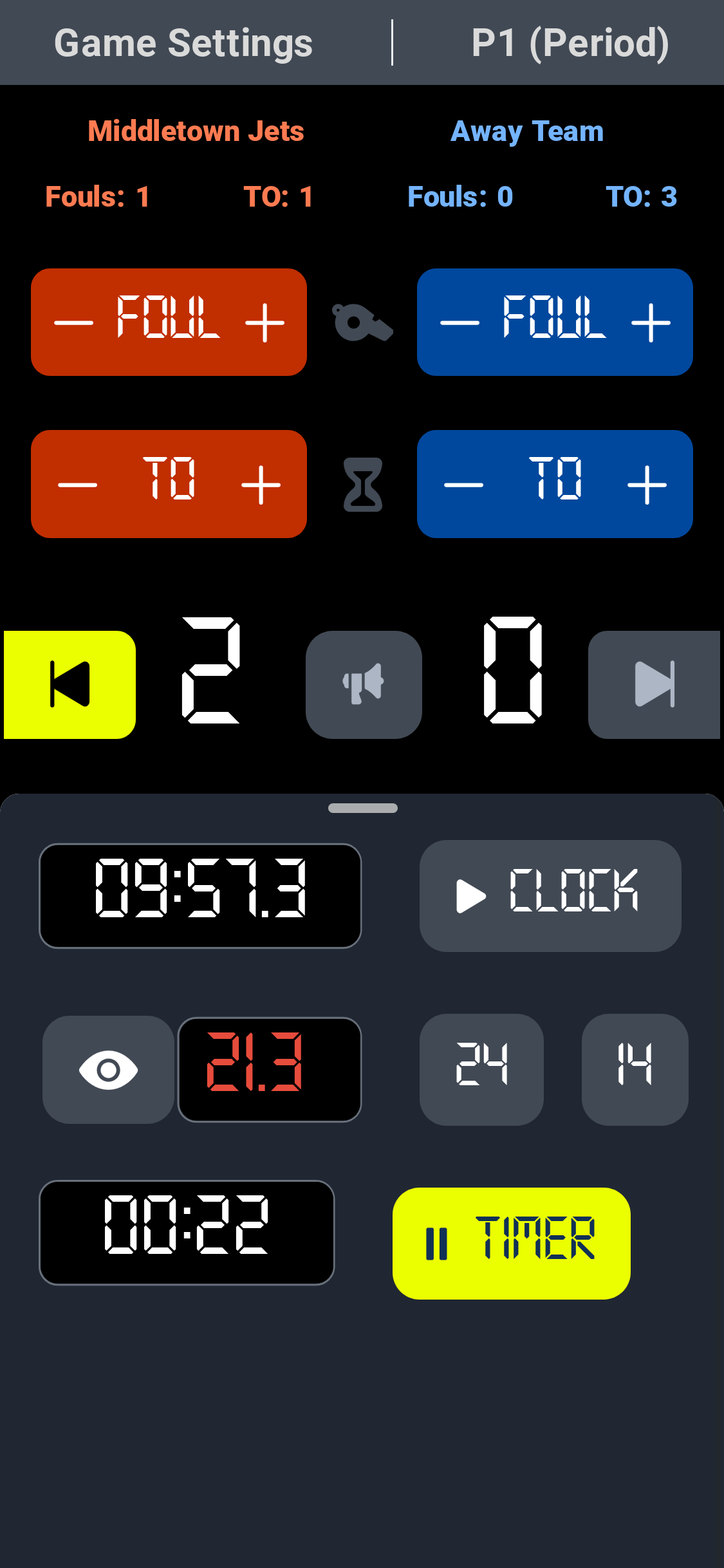
- Tap Take Timeout during the game — a countdown timer displays on the game panel
- Timeout durations follow the ruleset you selected at game start
- At the end of each period, choose to start the next period or stop the game
- A period timer starts automatically between periods
- Score operators can slide up the bottom modal to access the timer at any time when the game clock is stopped

8. Post-Game Stats & Streaming
Automatic Stats Summary
At the end of the game, ClipboardIQ generates a detailed summary: team points, individual player scores, fouls, and game duration. Review anytime from Past Games in the Game tab.
Stream Overlays
Streaming your game? Go to Settings before starting a game, copy the Browser TV Overlay URL, and paste it into your streaming software (OBS Studio, etc.) to add a professional scoreboard overlay to your broadcast.
Ready to run your next game?
Download ClipboardIQ and set up your first game in 30 seconds.
Start Free View All Features